Deploying Your Simulation to GitHub Pages
You can deploy your brian2wasm simulation to GitHub Pages, enabling others to view and interact with it directly in a web browser without any local installation.
Prerequisites
Ensure your repository includes:
Your
brian2wasmsimulation script (e.g.,your_script.py).The
pyproject.tomlfile from thebrian2wasmrepository.A folder structure like this:
📁 root folder
 ├─ 📁 .github
 │   └─ 📁 workflows
 │       └─ 📄 deploy.yml
 ├─ 📁 brian2wasm
 ├─ 📁 examples
 ├─ 📄 your_script.py
 └─ 📄 pyproject.toml
Note
Ensure all required files, including the simulation script and its corresponding HTML file (if customized), are committed to your repository.
Setup Instructions
Follow these steps to deploy your simulation to GitHub Pages:
Create the GitHub Actions Workflow
Create a file named
.github/workflows/deploy.ymlin your repository with the following content:name: Deploy Brian2WASM Simulation to GitHub Pages on: push: branches: [ main ] paths: - ".github/workflows/deploy.yml" - "**.py" - "**.html" permissions: contents: write jobs: build-and-deploy: runs-on: ubuntu-latest env: SCRIPT: path/to/your/script.py # Replace with your script path steps: - name: Checkout code uses: actions/checkout@v4 - name: Install Pixi uses: prefix-dev/setup-pixi@v0.8.0 with: cache: false - name: Install dependencies run: pixi install --locked - name: Run setup run: pixi run setup - name: Derive folder paths id: derive run: | # Remove .py extension FOLDER_PATH="${SCRIPT%.py}" # Get the last folder name (e.g., ornstein_uhlenbeck) FOLDER_NAME=$(basename "$FOLDER_PATH") echo "FOLDER_PATH=$FOLDER_PATH" >> $GITHUB_ENV echo "FOLDER_NAME=$FOLDER_NAME" >> $GITHUB_ENV - name: Generate simulation files run: | python -m brian2wasm $SCRIPT --no-server shell: pixi run bash -e {0} - name: Deploy to gh-pages run: | git fetch origin gh-pages || true git checkout gh-pages || git checkout --orphan gh-pages rm -rf $FOLDER_NAME mkdir -p $FOLDER_NAME cp $FOLDER_PATH/brian.js \ $FOLDER_PATH/index.html \ $FOLDER_PATH/wasm_module.js \ $FOLDER_PATH/wasm_module.wasm \ $FOLDER_PATH/worker.js \ $FOLDER_NAME/ || true cat > index.html <<EOF <!DOCTYPE html> <html lang="en"> <head> <meta charset="UTF-8"> <title>${GITHUB_ACTOR}'s Brian2WASM Simulations</title> <style> body { font-family: Arial, sans-serif; margin: 40px auto; max-width: 700px; text-align: center; background: #fafafa; } h1 { font-size: 2em; margin-bottom: 1em; color: #222; } ul { list-style: disc; text-align: left; display: inline-block; font-size: 1.2em; line-height: 1.6; } a { text-decoration: none; color: #007acc; } a:hover { text-decoration: underline; } </style> </head> <body> <h1>${GITHUB_ACTOR}'s Brian2WASM Simulations</h1> <ul> EOF for d in */ ; do if [ -f "$d/index.html" ]; then NAME=$(basename "$d") echo " <li><a href=\"$NAME/\">$NAME</a></li>" >> index.html fi done cat >> index.html <<EOF </ul> </body> </html> EOF git add $FOLDER_NAME index.html git -c user.name='github-actions' -c user.email='github-actions@github.com' \ commit -m "Deploy $FOLDER_NAME" || echo "No changes" git push -f https://x-access-token:${{ secrets.GITHUB_TOKEN }}@github.com/${{ github.repository }} gh-pages
Note
This workflow triggers on pushes to the
mainbranch when the workflow file, Python scripts, or HTML files are modified.Configure Your Script Path
Update the
SCRIPTenvironment variable in thedeploy.ymlfile to point to your simulation script:env: SCRIPT: examples/ornstein_uhlenbeck.py # Replace with your script path
Warning
Ensure the path is correct relative to the repository root. An incorrect path will cause the workflow to fail.
Commit and Push the Workflow
Add and commit the workflow file to your repository, then push it to the
mainbranch:git add .github/workflows/deploy.yml git commit -m "Add GitHub Pages deployment workflow" git push origin main
Enable GitHub Pages (First Time Only)
To enable GitHub Pages for your repository:
Go to your repository on GitHub.
Click the Settings tab.
Navigate to Pages in the left sidebar.
Under Source, select Deploy from a branch.
Choose the gh-pages branch.
Select / (root) as the folder.
Click Save.
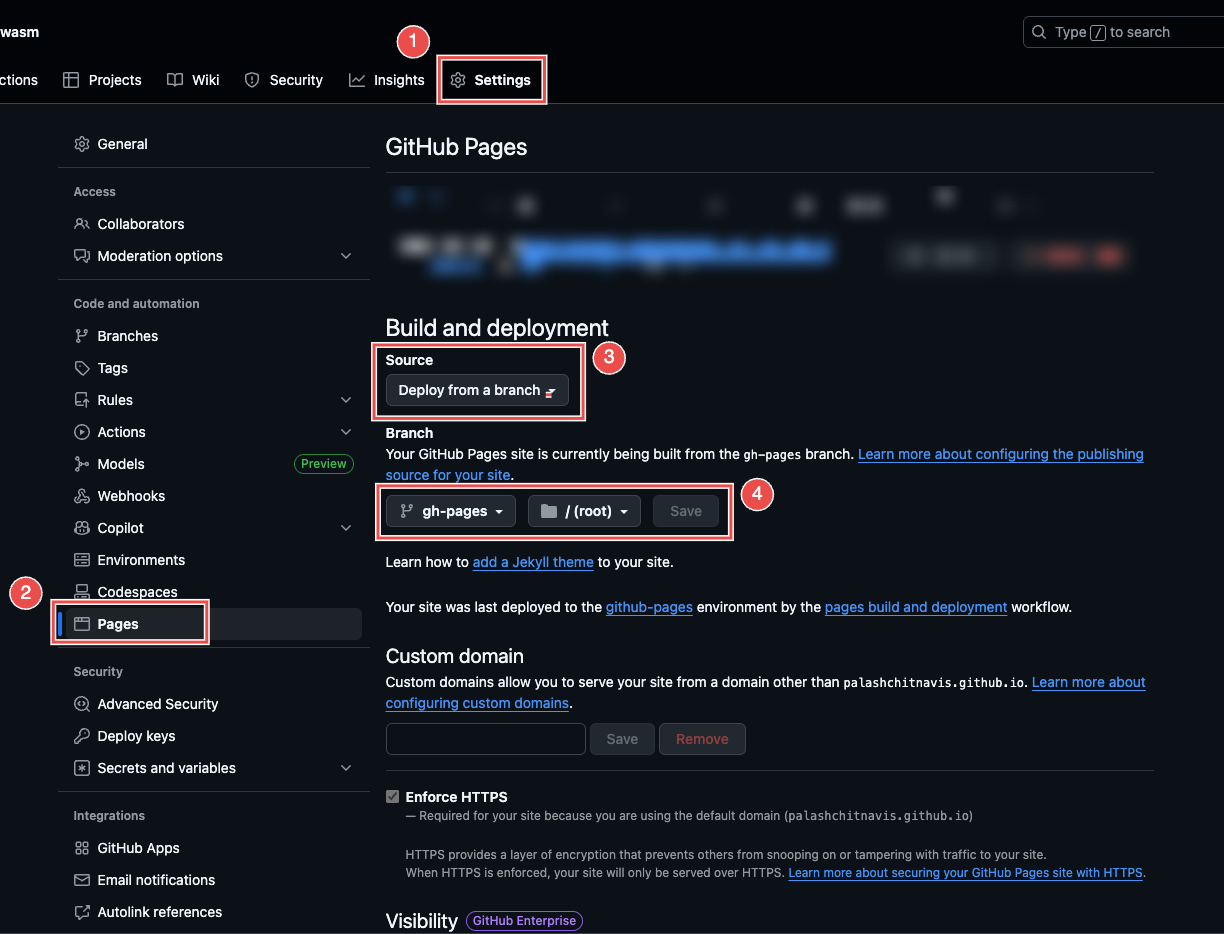
Screenshot of GitHub Pages configuration.
Note
This step is only required once per repository.
Monitor GitHub Actions
After pushing changes, check the Actions tab in your repository. Two workflows will run:
Deploy Brian2WASM Simulation to GitHub Pages: Builds your simulation files and pushes them to the
gh-pagesbranch.pages-build-deployment: Publishes the
gh-pagesbranch content to your GitHub Pages site.
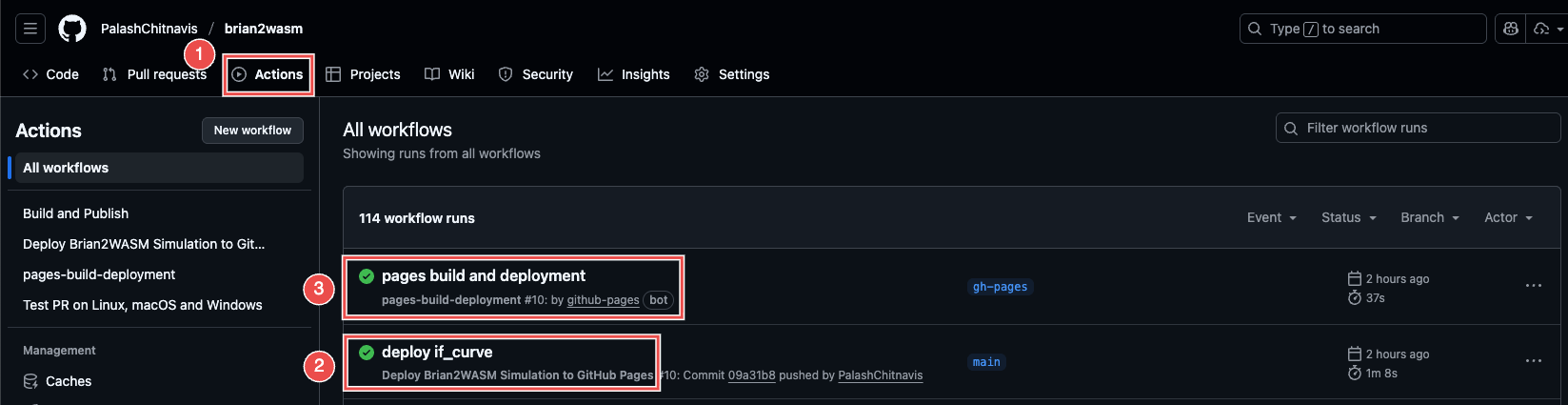
Screenshot of GitHub Actions workflows.
Tip
If the workflow fails, check the error logs in the Actions tab to diagnose issues, such as incorrect script paths or missing files.
Access Your Deployed Simulation
Once the workflows complete, access your simulation in one of two ways:
Navigate to Actions > Deployment > View deployment and click the provided link.
Visit directly:
https://<your-username>.github.io/<your-repository-name>/
Individual simulations are available at:
https://<your-username>.github.io/<your-repository-name>/<simulation-name>/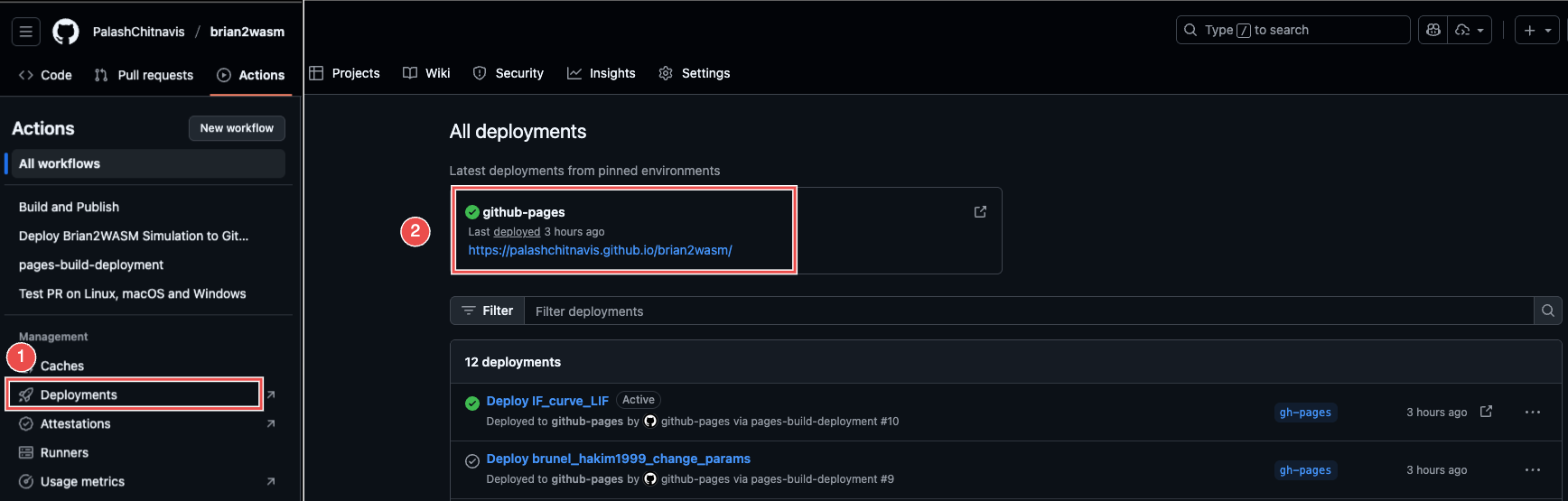
Screenshot of deployment access options.
Note
For an example of a deployed simulation, see: https://palashchitnavis.github.io/brian2wasm/
Troubleshooting
Common Issues
Workflow fails to find script: Verify the
SCRIPTpath indeploy.ymlis correct and relative to the repository root.Simulation not appearing: Ensure the simulation script and its corresponding HTML file (if customized) are committed to the repository.
GitHub Pages not enabled: Confirm that GitHub Pages is configured to use the
gh-pagesbranch in the repository settings.Missing output files: Check that
brian.js,wasm_module.js,wasm_module.wasm, andworker.jsare generated correctly by thebrian2wasmcommand.
Tip
Use the GitHub Actions logs to debug issues and ensure all required files are present in the gh-pages branch.